How to Connect Google Search Console to Claude AI Free 2026

If you work in SEO or run a website in the US, you've probably imagined asking your AI assistant things like "Why did my traffic drop last week?" or "Which pages are stuck on page 2 and need a push?" — and getting answers backed by real, live Google Search Console data.
That's exactly what I set out to do: connect Google Search Console directly to Claude AI Desktop so I could run powerful Claude AI SEO prompts against my real data, for free, without any third-party paid tools, and without trusting npm packages from unknown developers.
After hours of troubleshooting, failed attempts, and dead ends, I finally figured it out. I've been using this setup in my own SEO consulting work to pull live GSC data into Claude and run natural language analysis in seconds. In this guide, I'll walk you through every step — including the exact errors I hit and how I fixed each one — so you don't waste time like I did.
By the end, you'll have Claude acting as a live SEO assistant that can reason over your actual Search Console data in plain English. All free. All local. No data leaves your machine.
If a traffic drop is the first question you want answered, read my guide to the most common causes of a traffic drop first, because it starts by checking whether the drop is real and gives you each cause to test against this data.
What Is MCP and Why Does It Matter for SEO?
Before jumping into the setup, it's worth understanding what's actually happening under the hood — because this changes how you think about AI-powered SEO workflows.
MCP stands for Model Context Protocol — an open standard introduced by Anthropic in 2024 that allows AI models like Claude to connect to external tools and live data sources. Think of it as a secure bridge between Claude's chat interface and any data API you want to query.
Standard SEO tools give you dashboards. Dashboards require you to do the work of finding the pattern. When you connect Claude to Google Search Console via MCP, you're giving it the ability to run actual diagnostics — asking it questions in plain English and having it pull the live data, spot the patterns, and tell you what to fix.
The MCP ecosystem has grown rapidly: as of early 2026, the protocol has reached over 97 million monthly SDK downloads and 10,000+ active MCP servers across categories including SEO, analytics, CRM, and developer tools. For SEOs, this is the most significant workflow shift since GA4 replaced Universal Analytics.
You can learn more about how I use tools like this in my AI automation services and in my blog post on what Claude Code can do for SEO teams.
What You Need Before You Start
- Claude Desktop app installed on Windows, Mac, or Linux — download free from claude.ai/download
- Node.js installed — verify with
node -vin PowerShell or Terminal. If not installed, download from nodejs.org - npm installed — comes bundled with Node.js. Verify with
npm -v - A Google account with at least one verified property in Google Search Console
- Access to Google Cloud Console — free at console.cloud.google.com
- 10–15 minutes — that's genuinely all it takes once you know the right steps
The Problems I Faced — And Why Most Guides Fail
Most tutorials on this topic are outdated, vague, or send you down the wrong path entirely. Here's an honest account of every dead end I hit — so you know exactly what to avoid before you start.
Problem 1: The gsc-mcp-auth Command Not Found Error
When Claude's built-in Search Console connector hinted at running gsc-mcp-auth to authenticate, I tried it in PowerShell and got:
gsc-mcp-auth : The term 'gsc-mcp-auth' is not recognized as the name of a cmdlet...
Root cause: The gsc-mcp-auth command belongs to a specific internal package tied to Claude's own connector infrastructure. End users can't replicate it by running a terminal command. It's simply not publicly available.
Problem 2: No Google Search Console in Claude's Connector Marketplace
I searched for "Google Search Console" in Claude's Settings → Connectors marketplace and found nothing. As of early 2026, Anthropic's connector marketplace includes Gmail, Google Drive, GitHub, and Google Calendar — but not Google Search Console. This is likely because GSC is a specialist tool used primarily by SEOs and developers rather than the general public. The MCP workaround in this guide fills that gap completely.
Problem 3: Wrong npm Package Names
I tried installing @agentic/gsc-mcp and received:
npm error 404 Not Found - '@agentic/gsc-mcp@*' is not in this registry.
Lesson learned: Always verify that a package exists on npmjs.com before installing. More critically, be cautious about installing packages from unknown or unverified authors — they could potentially capture your OAuth tokens or Google credentials during the authentication flow.
Problem 4: Custom MCP Server URL Connection Error
When I tried adding a remote MCP server URL in Claude's custom connector settings, I got: "There was an error connecting to the MCP server. Please check your server URL and make sure your server handles auth correctly."
Remote MCP URLs need to be specifically configured with your own Google OAuth credentials. You can't plug in a generic public URL and expect it to authenticate against your private Search Console properties.
Problem 5: Wrong OAuth Credential Type
This was the most expensive mistake in terms of time lost. I initially created a Web Application OAuth credential in Google Cloud. This caused the list_sites tool to fail silently with a permissions error. The fix was to use a Service Account credential instead — which is the correct type for server-to-server API access where no user login prompt is required.
The Complete Solution: Step-by-Step Setup Guide
Here is the exact method that worked — no third-party paid services, no unverified packages, just Node.js and a Google Service Account. This is the same setup I use on my own machine for day-to-day technical SEO work.
Step 1: Install the mcp-server-gsc Package
Open PowerShell (Windows) or Terminal (Mac/Linux) and run:
npm install -g mcp-server-gsc
This installs the open-source Google Search Console MCP server. You can verify it yourself at npmjs.com/package/mcp-server-gsc and review the source code on GitHub (authored by ahonn) before installing — always a good security practice.
Verify the install completed successfully by running:
npx mcp-server-gsc --version
Step 2: Create a Google Cloud Service Account
- Go to console.cloud.google.com
- Create a new project (or select an existing one) — name it something like "Claude GSC MCP"
- Navigate to APIs & Services → Library → search Google Search Console API → click Enable
- Navigate to APIs & Services → Credentials → click Create Credentials → Service Account
- Name it GSC Service Account → click Create and Continue → Done
- Click on the newly created service account → open the Keys tab → Add Key → Create new key → JSON → Create
- A JSON file will download automatically. Save it as
gsc-service-account.jsonin your Documents folder — keep it somewhere permanent, you'll reference this path in the config
Why Service Account and not OAuth Web App? Service Accounts use server-to-server authentication — no login popup, no token expiry issues, no browser redirect required. It's cleaner, more reliable, and the correct credential type for this use case.
Step 3: Add the Service Account to Google Search Console
- Open your
gsc-service-account.jsonfile in any text editor (Notepad on Windows, TextEdit on Mac) - Copy the value of
"client_email"— it looks like:gsc-service-account@your-project-id.iam.gserviceaccount.com - Go to search.google.com/search-console
- Select your property → open Settings → Users and permissions → Add user
- Paste the service account email → set permission to Full → click Add
Repeat this step for each Search Console property you want Claude to access. The service account only gains access to properties you explicitly add it to.
Step 4: Configure Claude Desktop
Open your Claude Desktop configuration file in a text editor:
Windows:
notepad "$env:APPDATA\Claude\claude_desktop_config.json"
Mac:
nano ~/Library/Application\ Support/Claude/claude_desktop_config.json
Linux:
nano ~/.config/Claude/claude_desktop_config.json
Add or update the mcpServers section with the following. Replace YourName with your actual Windows username (or the correct path on Mac/Linux):
{
  "mcpServers": {
    "google-search-console": {
      "command": "npx",
      "args": ["-y", "mcp-server-gsc"],
      "env": {
        "GOOGLE_APPLICATION_CREDENTIALS": "C:\\Users\\YourName\\Documents\\gsc-service-account.json"
      }
    }
  }
}
Mac/Linux path example:
{
  "mcpServers": {
    "google-search-console": {
      "command": "npx",
      "args": ["-y", "mcp-server-gsc"],
      "env": {
        "GOOGLE_APPLICATION_CREDENTIALS": "/Users/YourName/Documents/gsc-service-account.json"
      }
    }
  }
}
Important: If you already have other MCP servers configured in this file, don't replace the whole block — just add the "google-search-console" entry inside the existing "mcpServers" object alongside your other servers.
Step 5: Fully Restart Claude Desktop
A partial close won't reload the config. You need to kill every Claude process:
Windows:
- Press
Ctrl+Shift+Escto open Task Manager - Find all Claude processes → right-click → End Task
- Also check the system tray (bottom-right) → right-click Claude icon → Quit
- Reopen Claude Desktop from your Start menu or desktop shortcut
Mac:
- Right-click the Claude icon in the Dock → Quit
- Or press
Cmd+Qwith Claude in focus - Reopen from Applications
Step 6: Verify the Connection
After restarting, look for the 🔨 hammer/tools icon at the bottom of the Claude chat input area. Click it — you should see "google-search-console" listed as an available tool.
Test it with this prompt first:
List all my Google Search Console properties
If Claude returns a list of your verified GSC properties, you're live. If you see an error, jump to the troubleshooting section below.
What You Can Do Once Connected: Power SEO Prompts
This is where it gets genuinely useful. Once your Google Search Console is connected to Claude AI, you're no longer limited to clicking through GSC's interface. You can ask natural language questions and get structured, actionable answers in seconds.
Traffic Analysis and Anomaly Detection
"My traffic dropped this week compared to last week. Identify exactly when the drop started and which pages lost the most clicks."
"Show me my top 20 pages by impressions for the last 30 days and highlight any with a CTR below 2%."
"Compare my organic performance this month versus last month. What's improved, what's declined?"
Quick Win Keyword Opportunities
"Which keywords am I ranking between positions 8 and 15 with more than 500 impressions? These are my quick win opportunities — list them with current position and CTR."
"Show me pages with high impressions but CTR below 1%. Suggest improved title tags for the top 5."
Technical SEO Diagnostics
"Check the indexing status of these pages: [paste URLs]. Which ones have issues and what are the specific problems?"
"Inspect my homepage for crawling or indexing issues and give me a prioritized fix list."
"List all my submitted sitemaps. Are any showing errors or coverage issues?"
Mobile vs. Desktop Performance
"Compare my mobile versus desktop performance for the last 28 days. Which pages perform significantly worse on mobile and what might be causing it?"
Keyword Cannibalization Check
"Analyze my top 50 queries and identify any instances of keyword cannibalization — multiple pages competing for the same search terms. Recommend consolidation or differentiation actions."
These prompts go far beyond what you can do manually in the GSC interface in the same time. For ongoing SEO campaigns, I now use this setup as part of my weekly review workflow — it's made a genuine difference in how quickly I can identify and act on opportunities for my consulting clients.
A Note on Security — Why I Avoided Third-Party Tools
During research, I found several npm packages from unverified authors claiming to provide Google Search Console MCP integration. I chose not to use them for a straightforward reason: installing an unverified npm package and giving it your Google credentials is a serious security risk.
A malicious or poorly maintained package could capture your OAuth tokens during authentication, access your Search Console data without your knowledge, or expose your credentials to third-party servers. This is not a theoretical risk — it has happened in the npm ecosystem multiple times with high-profile packages.
The method in this guide uses only two things: the open-source mcp-server-gsc package (verifiable on GitHub at github.com/ahonn/mcp-server-gsc) and Google's own Service Account credential system. Your credentials are stored locally on your machine. Your GSC data is queried directly via Google's official API. Nothing passes through any third-party server.
If you manage client websites — as I do through my SEO and digital marketing services — this local-first, credential-safe approach is the only one worth considering.
Troubleshooting: Common Errors and Fixes
Error: Hammer/tools icon not showing in Claude
The MCP server didn't load. Check three things: (1) your JSON config file has valid JSON syntax — use a JSON validator online to check, (2) the file path to your gsc-service-account.json is correct and uses double backslashes on Windows, (3) you fully quit and restarted Claude including system tray processes.
Error: "Failed to call tool list_sites"
Two likely causes: (1) You used a Web Application OAuth credential instead of a Service Account — go back to Google Cloud Console and create a Service Account key, (2) You forgot to add the service account's client_email as a user in Google Search Console → Settings → Users and permissions.
Error: ENOENT or "npx not found" on Mac
Claude Desktop on Mac doesn't inherit your shell's PATH. The fix is to use the full absolute path to npx in your config. Find it by running which npx in Terminal, then replace "command": "npx" in your config with the full path, e.g. "command": "/usr/local/bin/npx". Alternatively, install Node.js via nvm and use the absolute nvm path.
Error: Node.js version issues
The mcp-server-gsc package requires Node.js 16.6 or higher. Run node -v to check your version. If it's below 16.6, download the latest LTS version from nodejs.org and reinstall.
Error: "Permission denied" when listing sites
Your service account email doesn't have access to the Search Console property. Double-check that you copied the exact client_email value from your JSON file (not the service account's display name) and added it as a Full user in Search Console settings.
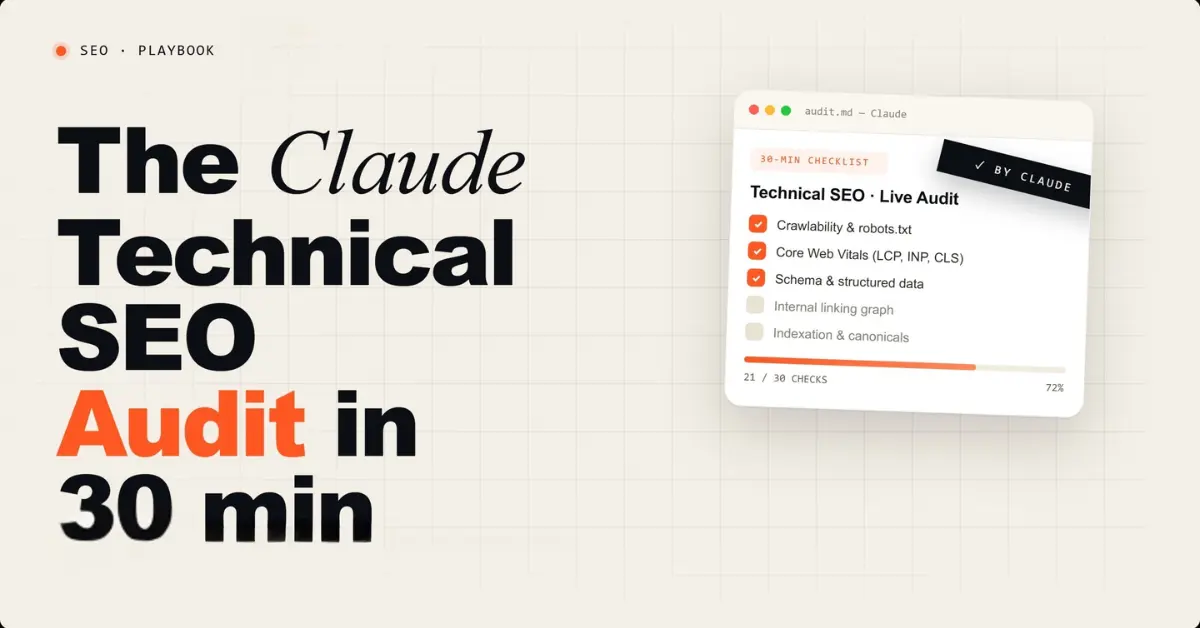
Once your GSC connection is live, use it in Phase 5 of the complete Claude SEO audit workflow
Final Thoughts
Connecting Google Search Console to Claude AI without any third-party tools is absolutely possible — it just requires navigating a few technical steps that aren't well documented in one place. The key insight is using a Google Service Account credential (not an OAuth Web Application) combined with the open-source mcp-server-gsc package configured in Claude Desktop's config file.
Once set up, you'll have one of the most powerful SEO diagnostic tools available: an AI assistant that can reason about your actual Search Console data in natural language, spot patterns, identify quick wins, flag technical issues, and help you make data-driven decisions — all for free, all on your own machine.
For SEO professionals managing multiple sites, this setup is a genuine time-saver. What used to take 20 minutes of manual filtering and exporting in GSC now takes 30 seconds of asking Claude a question. That efficiency compounds fast across a full week of SEO work.
If you manage your own website's SEO and want a clearer strategy for turning data like this into real growth, explore my SEO consulting services or get in touch directly — I work with US, UK, and European businesses across e-commerce, SaaS, and professional services.
If this guide helped you, share it with your SEO team or developer colleagues. And if you hit a different error than the ones I documented, drop a comment below — I'll update the troubleshooting section with verified fixes.
Frequently Asked Questions


Leave a Comment
Your email address will not be published. Comments are moderated before appearing.